
Canon Print Service
Canon Inc.Tools
3.29.23K Reviews
- Version
- Varies With Device
- Installs
- 50.00M
- Age Rating
- Everyone
Screenshots

Our Review of Canon Print Service
 Analysis by Appyee
Printing from a phone sounds simple until the document is ready, the printer is on, and the two devices still cannot find each other. Canon Print Service is designed for that exact gap. It is a free Android print plugin from Canon Inc. that lets compatible Canon printers receive jobs over a network from other apps. I tested it with the mindset of someone who wants fewer steps, not another full printer dashboard, and that distinction matters: this is a focused printing tool rather than an all-purpose printer companion.
My overall impression is practical but conditional. When the phone and printer are already connected to the same network and the printer is supported, the plugin can make printing feel like a normal Android sharing action. When the network setup is unclear, the printer belongs to another brand, or you want scanning, ink monitoring, and printer maintenance in one place, a broader alternative may be a better fit. The app is free, rated for Everyone, and has become widely used, with more than fifty million installs. Its average rating sits at 3.2 from roughly one hundred forty-four thousand ratings, so the experience is clearly useful for many people but not consistently effortless for everyone.
What to decide before installing it
The first question is not whether the plugin looks attractive. It is whether your printing situation matches its job. Canon Print Service is most relevant when you own a Canon printer that supports network printing, use an Android phone or tablet, and want to send files from existing apps without opening a separate printer control center every time. If those three conditions describe your home or office, this small utility deserves consideration.
The second question is what “printing” means to you. If you only need to print a PDF, a webpage, a photo, or a document from an app that exposes Android’s print command, a system-level plugin can be more convenient than a large companion application. If you expect to scan papers, check supplies, clean print heads, configure wireless settings, or manage several printers, you should judge this as one part of a printing setup rather than the complete solution.
I also recommend checking the printer’s network arrangement before blaming the app. A phone connected to a guest network may be isolated from a printer on the main network. A printer connected by cable to a router can still be available to wireless devices, but that depends on the router and network configuration. These are ordinary home-network details, yet they explain many “the printer is not found” moments. The plugin cannot make two devices visible to each other when the network keeps them apart.
There is another useful distinction between Android’s standard print route and a manufacturer-specific tool. A general print service may identify printers from several brands, while Canon Print Service is centered on Canon hardware. That focus can be an advantage when your printer is Canon and the generic route offers limited choices. It can also be a reason to skip the installation if your household uses mixed brands and you want one consistent workflow.
The everyday workflow I found most useful
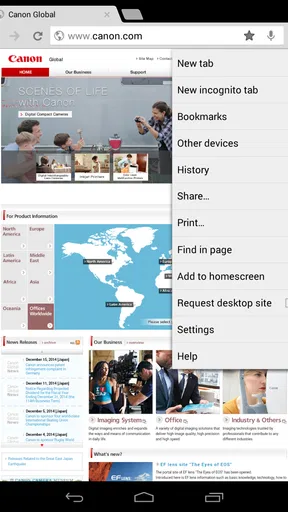
Imagine receiving a school form as a PDF in an email or messaging app. Instead of saving it, opening a separate printer application, and searching for the file again, I would open the document, choose the app’s print command, select the Canon printer, review the available settings, and send the job. The value is not a flashy interface; it is keeping the action close to the document I am already viewing.
The same approach works well for a webpage that needs to be read away from a screen, a boarding document, a recipe, or a photo that needs a physical copy. The plugin becomes part of Android’s normal share-and-print behavior. That makes it especially helpful for family members who do not want to learn a second app just to print one page.
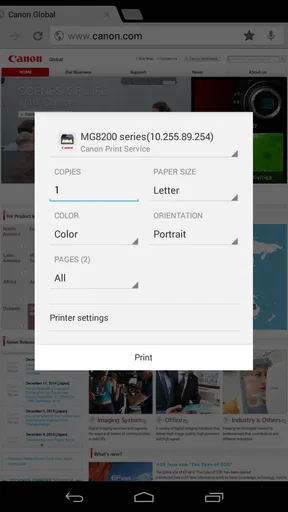
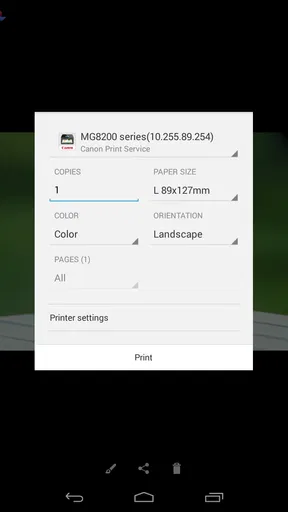
Before sending an important job, I would still preview the page count, paper size, orientation, and color choice where those controls are available. Mobile print dialogs can expose fewer options than a desktop driver, and the defaults may not match the paper loaded in the tray. A quick check prevents the familiar waste of printing a portrait document sideways or sending a color-heavy page when a black-and-white copy would do.
Where the focused design works in its favor
Canon Print Service’s strongest quality is that it stays out of the way. A separate printer app often asks you to navigate through a home screen, choose a file source, and then adjust print settings. A print plugin reverses that order: start with the content, invoke printing, and let the Android print interface handle the handoff. For occasional printing, that can be the difference between a task that takes seconds and one that gets postponed.
It is also a sensible choice for people who do not want another content library on their phone. A full printer application may be useful, but it can feel excessive when the only requirement is sending a document. Here, the narrow purpose is the benefit. I would install it on a family Android device used for school forms, household records, and occasional photos, then leave the more advanced printer management to a computer or a separate Canon utility when needed.
Another advantage is the relationship between the plugin and the apps you already use. You do not have to build a new habit around storing every file inside a printer app. That matters for privacy and organization as well as convenience: the document can remain in its existing location until you choose to print it. I would not treat that as a guarantee that every app supports printing equally, but it is a more natural workflow than importing everything into a dedicated hub.
The app’s long presence also gives it a practical role in older Android setups. Canon introduced it in 2014, and it remains a recognizable option for Canon network printing. That does not mean every older phone, newer phone, or printer combination will behave identically, but it does explain why users may encounter it as a component of Android printing rather than as a traditional app they open from the home screen.
Small details that make printing more reliable
My first tip is to test the least complicated file before trying an important document. Print a short text page or a simple PDF while both devices are awake and connected. This separates basic discovery problems from file-specific problems. If the simple test works, you can investigate the original document’s layout or size instead of repeatedly changing network settings.
My second tip is to avoid switching networks halfway through the process. Phones often move between a home Wi-Fi network, a work network, and mobile data without making the change obvious. If the printer disappears, I would check the phone’s current Wi-Fi name and the printer’s network status before reinstalling anything. Reinstalling a print plugin rarely fixes a device that is simply no longer on the same local network.
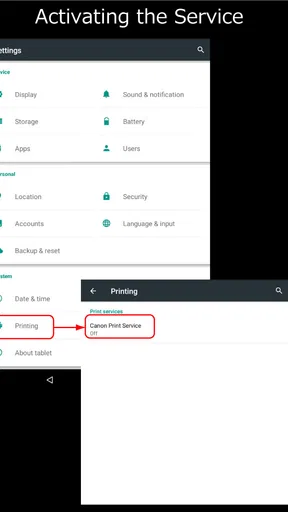
My third tip is to treat the Android print service as a system component. Depending on the phone’s software, it may need to be enabled in the device’s printing settings after installation. If the plugin does not appear in an app’s print menu, I would look there first. I would also check whether the source app supports Android printing at all; some apps offer sharing but no print command, which is a limitation of the source app rather than evidence that Canon Print Service is broken.
A fourth practical habit is to print one copy first when the document contains unusual formatting. Mobile rendering can differ from a desktop application, particularly with wide tables, web pages, or documents containing embedded elements. Once the first page looks right, sending the remaining copies is safer than discovering a layout issue after a long queue has been produced.
How it compares with the usual alternatives
The closest alternative is Android’s general print service. That route can be preferable in a home with printers from different manufacturers or when you want to avoid installing a brand-specific component. Its weakness, from my point of view, is that generic support may not expose the same Canon-oriented behavior across every printer model. I would start with the generic option if my hardware is mixed, but choose Canon Print Service when the printer is Canon and the generic path is unreliable or too limited.
A full Canon printer application is another category altogether. It is the better direction if your daily routine includes scanning, copying, checking printer status, adjusting device settings, or managing images before printing. The trade-off is a heavier workflow for a simple document. I see Canon Print Service as the quick lane and a full companion app as the service counter: one is faster for a straightforward request, while the other is more capable when the task needs supervision.
Desktop printing is still the stronger choice for complex work. A computer usually gives you more control over page layout, finishing, color handling, and document preparation. If I were printing a long report, a carefully designed brochure, or a batch of files with different settings, I would prepare it on a computer where I can inspect the result more closely. The phone plugin is most convincing for short, immediate jobs rather than production-style printing.
Cloud-based or remote printing services may suit people who print while away from home, but they introduce a different set of dependencies and workflows. Canon Print Service is aimed at a local network connection, so its advantage is directness when you are near the printer. If your main need is sending a job to a printer in another location, I would look at a service designed for remote access instead of expecting this plugin to replace it.
Printer-specific apps from other manufacturers follow the same pattern. They may combine printing with scanning, supply information, and device administration, but none of that automatically makes them better for a simple Canon print command. The right comparison is not “which app has the longest feature list?” It is “which app removes the most friction from the task I actually perform?” For a Canon owner printing from Android, the smaller tool can win precisely because it does less.
Where it can fall short
The most important limitation is compatibility. The app is not a universal bridge to every printer, and the store summary specifically positions it for Canon printers over a network. If your printer is USB-only, disconnected, or outside the supported Canon range, installing the plugin will not change the hardware’s capabilities. I would confirm the printer model and its network-printing support before making this the center of my setup.
Network discovery can also be the frustrating part. Even with a compatible printer, the phone may not find it immediately if the router separates wireless clients, the printer is asleep, or the devices are connected through different network segments. In that situation, the app may appear unreliable when the real issue is visibility between devices. A restart of the printer and a check of the Wi-Fi connection are reasonable first steps; repeated tapping inside the print dialog is not.
The experience also depends on the app from which you print. A PDF reader, browser, gallery, and office editor may present different print controls. Some will offer useful layout choices, while others may hand over a simplified job. I would not choose this plugin expecting every application to expose identical options. For precision work, I would open the file in an app with a strong print preview before sending it.
There is a learning curve for users who expect to open an icon and see a dashboard. A print service may not behave like a conventional app with a prominent home screen. Someone searching the app drawer and finding little to launch could think the installation failed, when the intended entry point is the Android print command. That design is efficient once understood, but it should be explained clearly to less technical family members.
The public response is mixed rather than uniformly enthusiastic. An average of 3.2 from about one hundred forty-four thousand ratings suggests a substantial audience has found reasons to use it, while a similarly large group has encountered friction. I read that as a warning to keep expectations realistic: this is not a guaranteed fix for every Canon printing problem. It is a useful connection layer whose success depends on the printer, phone, network, and source app working together.
What switching will cost you
Because the plugin is free, the main cost of switching is not money. It is time spent changing habits and diagnosing a new route. If you currently print through a full Canon application, moving simple jobs into the Android print menu may save steps, but you will still need the larger tool for tasks that go beyond printing. I would not uninstall a working companion app until I had tested the documents and controls I use most often.
Switching from a generic print service is similarly easy to test but not always easy to standardize. Install the Canon option, print the same ordinary document, and compare printer discovery and available settings. Keep the route that behaves more predictably on your network. If several people use the printer, remember that changing one phone’s print service does not automatically simplify everyone else’s setup; consistency may be more valuable than a small personal convenience.
There is also a hidden cost in troubleshooting. If you replace an established workflow without recording the old settings, it can be difficult to tell whether a problem comes from the app, the network, or the printer. I would note the printer’s network connection, the phone’s Wi-Fi, and the source app used for the test. That simple checklist makes it easier to return to the previous method if the new one is not an improvement.
For occasional home printing, the switch is low risk because the app is free and the workflow is easy to test. For a small office that relies on predictable output, I would be more cautious. A desktop driver or managed printing setup may be preferable when documents are time-sensitive or require repeatable formatting. The phone plugin is convenient, but convenience should not replace a tested process for important business work.
Who should use it, and who should skip it
I would recommend Canon Print Service to an Android user with a network-capable Canon printer who wants to print directly from documents, photos, browsers, or other compatible apps. It is especially appealing for short household jobs, school paperwork, travel documents, and anyone who dislikes importing files into a separate printer application.
I would also consider it for a shared home where different people use the same printer but have different technical confidence. The basic action can be taught as “open the file, choose Print, select the Canon printer.” That is easier than explaining a complete printer-management application, provided the initial network setup has already been completed.
I would skip it as my primary solution if I use iOS rather than Android, rely on a non-Canon printer, need remote printing, or require advanced scanning and maintenance features in the same interface. I would also choose a desktop workflow for complex layouts and large batches. In those cases, the plugin’s narrow purpose becomes a constraint rather than a strength.
For anyone uncertain, my advice is to test one normal document before changing the whole setup. Confirm that the printer appears, inspect the available settings, and check the physical result. If that test is smooth, the plugin can quietly become one of those useful utilities you rarely think about. If discovery fails or the controls are too basic, you have learned that early without paying for the experiment.
My recommendation after using it
Canon Print Service is a sensible, focused tool rather than a complete printing ecosystem. I like it most when I am already viewing the file I want and need a short path to a Canon printer on the same network. Its free price removes the biggest barrier to trying it, and its Everyone age rating makes it suitable for ordinary household use. Still, the modest average rating is a useful reminder that compatibility and network conditions matter as much as the plugin itself.
My recommendation is straightforward: install it if your Canon printer, Android device, and local network are a good match, but keep a broader Canon utility or computer workflow for scanning, maintenance, remote access, and demanding layouts. That is where the app makes the most sense. It does not need to replace every other printing method to be worthwhile; it only needs to make everyday Android printing less cumbersome.
After its release on February 6, 2014, the tool has remained relevant because the basic problem has not changed: people still want to move a document from a phone to a nearby printer without unnecessary detours. In my experience, it succeeds when treated as a quiet print-service component, not as a universal printer manager. For the right Canon setup, that limited ambition is exactly what makes it useful.
Verdict
Strengths of Canon Print Service
- Prints directly from many Android apps without opening a separate print app.
- Supports a wide range of compatible Canon printers and multifunction devices.
- Offers useful paper size, orientation, color, and copy-count settings.
- Can discover printers on the same Wi-Fi network automatically.
- Lightweight service that runs only when printing is requested.
Limitations of Canon Print Service
- Requires a compatible Canon printer; other brands may not work.
- Printer and phone usually need to share the same Wi-Fi network.
- Some advanced printer features are unavailable through the service.
- Initial setup can be confusing if printer permissions are disabled.
- Printing may fail when network signals are weak or unstable.
Other Releases by Canon Inc.
View All
Canon PRINT
Tools4.5
Similar Picks in This Category
View All
Google LLC4.0

Gboard - the Google Keyboard
Google LLC4.5

Google Play services
Google LLC4.3

Google Play Store
Google LLC4.9

Files by Google
Google LLC4.5

SHAREit: Transfer, Share Files
Smart Media4U Technology Pte.Ltd.4.3
Frequently Asked Questions
What is Canon Print Service, and what does it do?
Canon Print Service is an Android printing utility that lets compatible smartphones and tablets send documents, photos, web pages, and other supported content to selected Canon printers over a wireless network. After installation and activation, it can appear in the Android system print menu, allowing you to choose a printer, adjust basic settings, and start printing without opening a separate Canon printing app each time.
Which Canon printers are compatible with Canon Print Service?
Compatibility depends on the printer model, Android version, and the features supported by Canon Print Service. Many wireless Canon PIXMA, MAXIFY, and other compatible models can work with the service, but not every Canon printer is supported. Before downloading, check Canon’s official compatibility information and confirm that your specific printer supports Android printing through this service.
Does Canon Print Service require Wi-Fi or an internet connection?
Canon Print Service generally requires your Android device and printer to be connected to the same local wireless network. An active internet connection is not normally necessary once both devices are properly connected to that network, although internet access may be useful for downloading the service, updating software, or troubleshooting. Some printer models may also support wireless direct connections.
How do I print a document or photo with Canon Print Service?
First, install Canon Print Service and enable it in your Android device’s printing settings if it is not activated automatically. Open a compatible document, image, email, or webpage, select the Share or Print option, and choose Canon Print Service from the available services. Select the detected Canon printer, review options such as paper size and color, then tap the print button.
Why can’t Canon Print Service find my printer or complete a print job?
The most common causes are that the phone and printer are connected to different Wi-Fi networks, the printer is switched off, wireless communication is disabled, or the printer is not compatible with the service. Restarting both devices, checking the printer’s network status, updating the app and printer firmware, and disabling restrictive VPN or guest-network settings may help. Also verify that Android has enabled the printing service.
